
 Print
How do I install my RSA SecurID soft token on mobile?
Your RSA SecurID soft token allows you to generate a unique passcode directly on your mobile device. You’ll use this 2-step verification method to confirm your identity when modifying users or approving payments.
What do I need?
You'll need a smartphone or tablet running Android 6.0, iOS 10.0 or higher. Please make sure you have this notification email from Services.Security@bmo.com:
IMPORTANT: Set up your RSA SecurID Token / IMPORTANT : Configurez votre jeton RSA SecurID’
Because this email contains sensitive information, it will direct you to BMO Secure Email, where you can read them in full. To do that, you’ll need to register for a BMO Secure Email account. Simply enter an email address and choose a password, then select Sign In.
Install your new RSA SecurID®* soft token
Get Started
Step 1: Install the RSA Authenticator app
Step 2: Import your token
Step 3: Create your PIN
Step 4: Test your token
Get Started
- Sign in to Online Banking for Business using a computer. If you’ve been enrolled in the service, you’ll see an option to Set up RSA SecurID.
Note: If you don’t get prompted when signing in, you can also start the process yourself. In Online Business for Banking, click the “Administration” tab and under “Settings” select My Profile. At the bottom of the page, choose Create SecurID PIN. - Select Set up RSA SecurID and follow the steps provided.
- If you’ve been assigned multiple tokens, you’ll be prompted to choose the one you want to set up now.
Note: You can find your token serial number in the email you received from BMO Security Services. - On the Welcome to RSA SecurID screen, choose Mobile/Tablet then select Next.
- Now, follow the steps below.
Step 1: Install the RSA Authenticator app
- On your mobile device, open the App Store or Google Play.
- Search for “RSA Authenticator (SecurID)”. It looks like this:
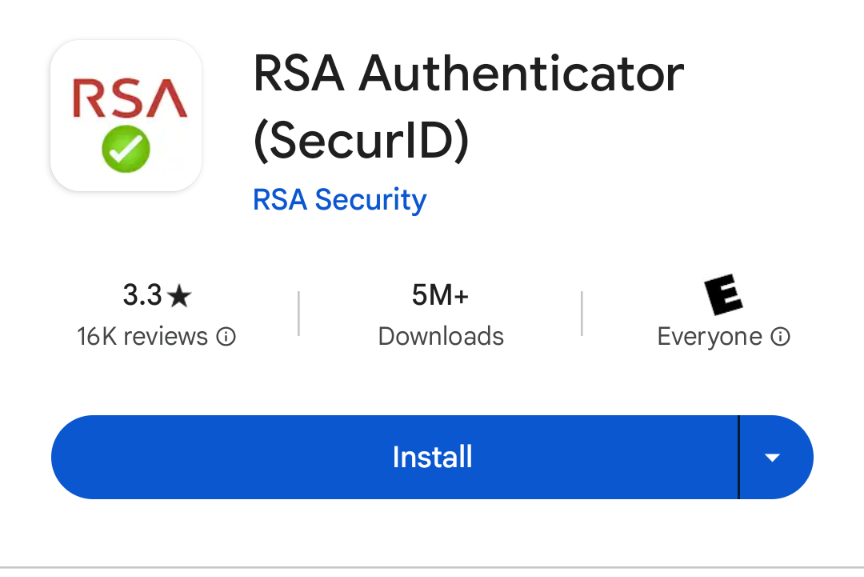
- Install the app on your mobile device.
Success! You now have the RSA Authenticator app installed on your mobile device.
For this step, you'll need to have the RSA Authenticator app installed on your mobile and the following email we sent you:
- IMPORTANT: Set up your RSA SecurID Token / IMPORTANT : Configurez votre jeton RSA SecurID
It's been sent with the “PROTECT” encryption feature so you’ll need to open and view them with BMO Secure Email. How to sign up for BMO Secure Email
How to import a soft token
- Using your mobile, open the email “IMPORTANT: Set up your RSA SecurID Token / IMPORTANT : Établissez votre jeton RSA SecurID”.
- Tap the .sdtid file email attachment. This automatically opens the RSA Authenticator app you installed in step 1. If it doesn’t, your device should prompt you to select an app to open the token. In this case, choose the RSA Authenticator app.
- When the app prompts you, enter the password from the same email.
- In the confirmation screen, tap OK.
Success! Your token is now securely stored on your mobile device.
Step 3: Create your PIN
Now you'll create your PIN. This PIN is not the same as your banking PIN - you'll only use it with the RSA Authenticator app to generate passcodes. Make sure you record it somewhere safe.
In this step, you’ll need Online Banking for Business open on your computer, as well as the RSA Authenticator app on your mobile device.
- Open the RSA Authenticator app on your mobile device.

- Leave the main field blank and select Submit.
- Your app will display a passcode. Before it expires, enter the 8-digit code that appears on your mobile device into Online Banking for Business and select Submit.

- Continuing in Online Banking for Business, create a new PIN. It must be 6-digits and cannot start with 0. Re-enter your PIN in the 'Confirm your new PIN' field.
Note: You'll need this PIN every time you use RSA SecurID, so keep a record of it somewhere safe.

- When you’re finished, select Continue.
IMPORTANT: There may be a delay of several seconds before your PIN is confirmed. DO NOT press 'Continue' again. This may cause an error.
You’ve now created your PIN. You’ll use this each time you’re asked to generate a passcode.
This is your final step.
To complete your token setup, please generate a passcode. These will be the same steps you follow every time you're asked to enter an RSA SecurID passcode.
- Open the RSA Authenticator app on your mobile device.
- Enter the PIN you just created and select Submit.

- Before it expires, enter the code that appears on your mobile device in Online Banking for Business and select Complete setup.

Success! Your RSA SecurID token is now set up and ready to use to confirm your identity.
Disclaimer: Download and use of the RSA SecurID Software Token app is governed by the terms of the Google PlayTM* store and the RSA Security Inc. license agreement, which is provided with the app. Bank of Montreal makes no representation or warranty respecting the app or the Google Play store. You agree that Bank of Montreal is not responsible for any difficulties, consequences, costs, claims, damages or losses arising in any way whatsoever out of the downloading or use of the app.
TM/® Trademarks of Bank of Montreal.
®* RSA SecurID is either a registered trademark or trademark of EMC Corporation in the United States and other countries.
TM* Google, Android and Google Play store are trademarks of Google Inc, and may be registered in the United States and other countries.
®† Apple, iPhone, iPad, iOS and App Store are trademarks of Apple Inc, and may be registered in the United States and other countries.
Top Questions
- f. How do I remove an alert?
- Where can I find the Help Desk number?
- a. How do I generate an RSA SecurID passcode?
- How do I create a SecurID PIN?
- c. How do I unlock a user?
- a. How do I download reports using File Transfer Facility (FTF)?
- Need help signing in to Online Banking for Business?
- What is RSA SecurID?
- How do I view my account activity?
- e. How do I install my RSA SecurID soft token on Windows?
Top
The screen size of your device is too small to view the page. Please use a larger device.