
 Print
Print
How do I install my RSA SecurID soft token on Windows?
Your RSA SecurID soft token allows you to generate a unique passcode directly on your computer or mobile device. You’ll use this 2-step verification method to confirm your identity when modifying users or approving payments.
What do I need?
You'll need a computer running either Windows 10 version 1709 or higher. Please make sure you have these two notification emails from Services.Security@bmo.com:
- "[PROTECT] Your RSA SecurID Soft Token: Installation File"
- "[PROTECT] Your RSA SecurID Soft Token: Import Password"
Because these emails contain sensitive information, they will direct you to the secure BMO Message Center, where you can read them in full. To do that, you’ll need to register for a Message Center account. Simply enter an email address and choose a password, then select Sign In.
After you’ve retrieved your RSA SecurID soft token emails, sign in to Online Banking for Business. If you’ve been enrolled in the service, you’ll see an option to set up RSA SecurID.
Note: If you don’t get prompted when signing in, you can also start the process yourself. In Online Banking for Business, click the Administration tab and under “Settings” select My Profile. At the bottom of the page, choose Create SecurID PIN. Then Select Set up RSA SecurID and follow the steps provided.
Install your RSA SecurID soft token
- Step 1: Choose your token
- Step 2: Install the RSA SecurID software
- Step 3: Import your token
- Step 4: Create your PIN
- Step 5: Test your token
If you’ve been assigned multiple tokens, you’ll be prompted to choose the one you want to set up now.
If you only have one — simply select your token from the dropdown and then select Continue.
The SecurID software is what you’ll use to generate your unique passcode to help verify your identity. Depending on your company’s security policies, you may need help from your IT department to download, install or run the software on your computer or mobile device.
-
Download the most recent version of the software from the RSA website: RSA SecurID Software Token Downloads for Microsoft Windows
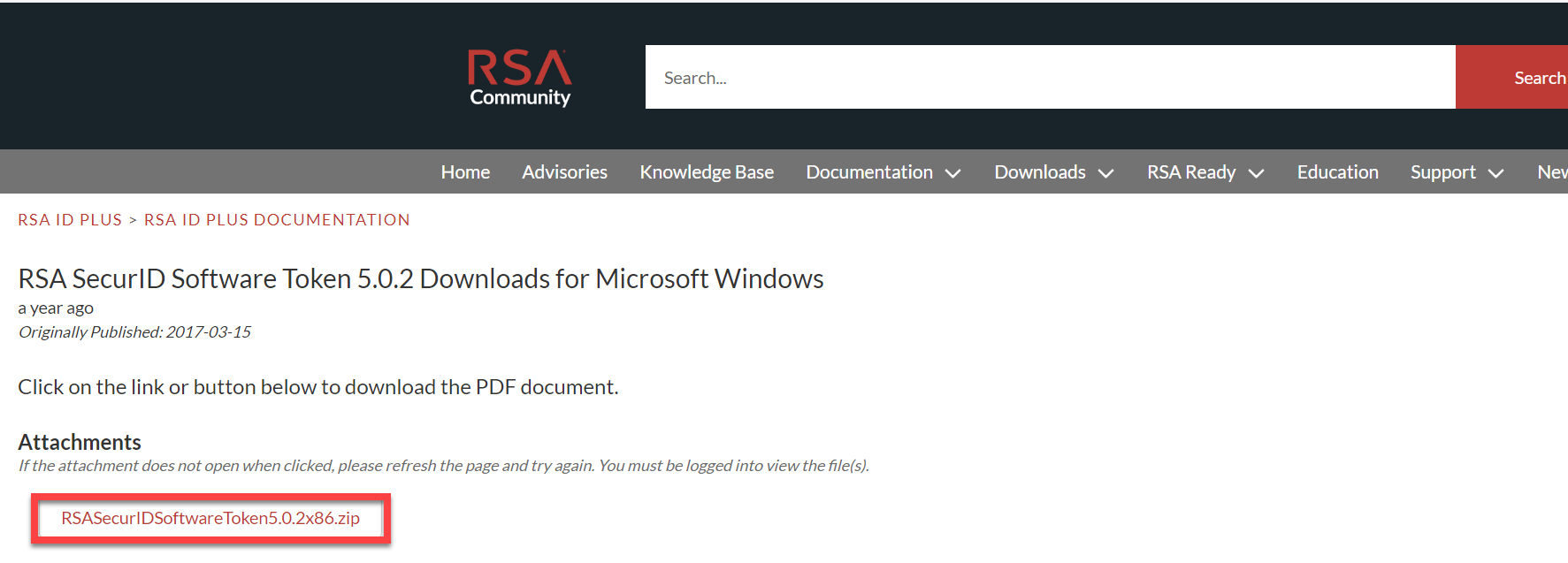
-
Next, at the top of the screen, select Download
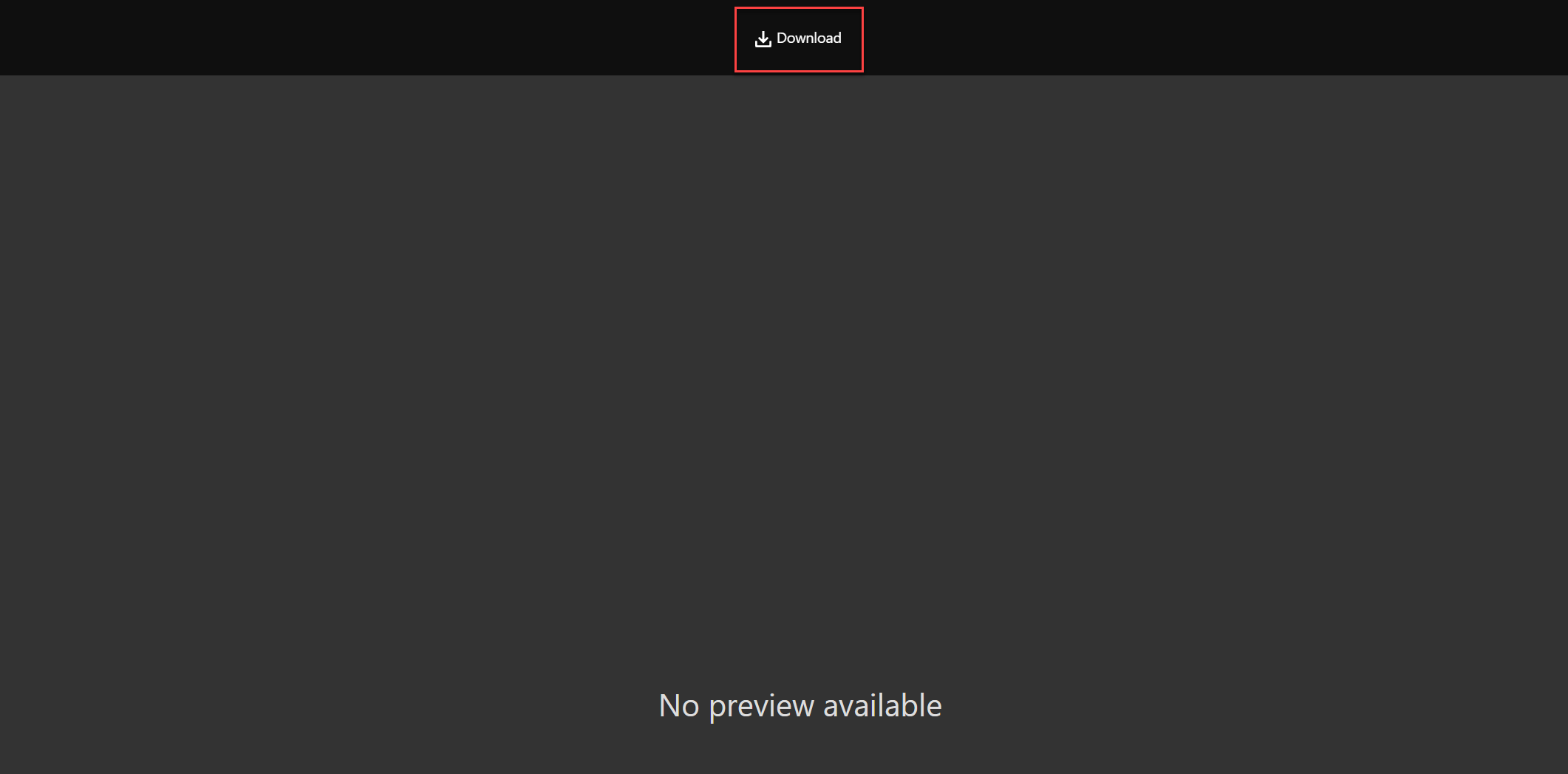
Note: Based on your operating system, choose the 32-bit or 64-bit version. How to check if your system uses a 32-bit or 64-bit version of Windows. -
From your “Downloads” folder, open the RSA SecurID zip file.
-
Then select the folder named RSASecurIDSoftwareToken5.0.2x86.
Note: “502” is the version number. This number will change if RSA update their software. -
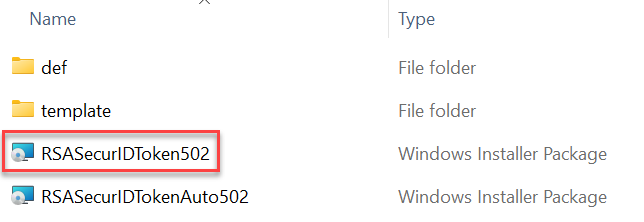
Next, open the installation file RSASecurIDSoftwareToken502. Don’t select the file with “Auto” in the name.
Note: In Windows 10, you may need to right-click the installation file and select ”Run as administrator”.
-
Follow the installation instructions and choose the setup type Typical.
-
When the installation is complete, select Finish.
You’ve now securely installed the RSA SecurID Token software on your computer.
For this step, you'll need to have the RSA SecurID software installed and the following 2 emails we sent you:
- Your RSA SecurID Token: Installation file
- Your RSA Soft Token Password Information
They’ve been sent with the “PROTECT” encryption feature so you’ll need to open and view them in BMO Message Center. How do I sign up for the BMO Message Center
How to import a soft token
- Open the email, “Your RSA SecurID Token: Installation file”.
- Double-click the .sdtid file attachment. This should automatically start the RSA SecurID Token software you installed.
Note: On some computers, you may need to first choose Open and then RSA SecurID Software Token to open the attachment.
- When prompted by the RSA SecurID software, enter the password from the email, “Your RSA Soft Token Password Information” and select OK.
- Once your token is imported, select Change Name and type a nickname for your token. Select OK.
Your token is now securely stored on your computer. For your protection, we recommend deleting the email containing the .sdtid file attachment.
Now you'll create your PIN. This PIN is not the same as your banking PIN - you'll only use it with the RSA SecurID software to generate passcodes. Make sure you record it somewhere safe.
In this step, you’ll need Online Banking for Business open as well as the RSA SecurID software.
- Open your RSA SecurID software.
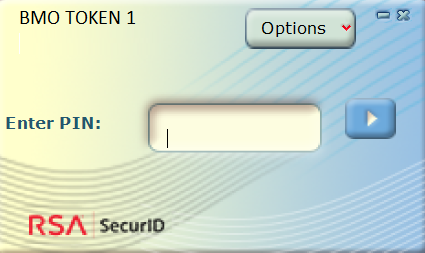
- Leave the main field blank and select the arrow button
 to generate an 8-digit code. An 8-digit code will be displayed.
IMPORTANT: We recommend waiting until the passcode refreshes before proceeding to the next step.
Note: It may take several seconds to generate the code, so please only click the arrow button once.
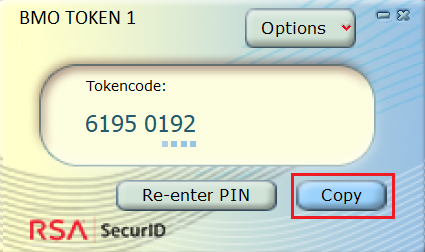
- When the passcode refreshes, select the Copy.
Note: We recommend that you only use the Copy button. Do not write it down or copy it in any other way.
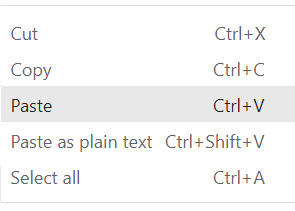
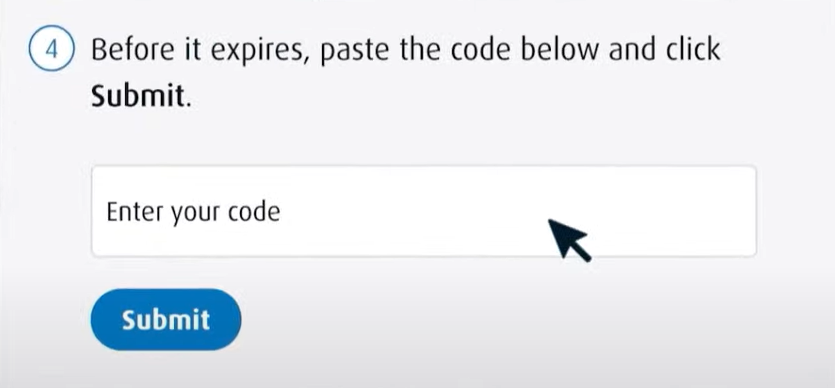
- Paste the 8-digit code into the passcode field In Online Banking for Business.
- And select Submit. Please note that it may take several seconds to complete.
IMPORTANT: If you click the Submit button twice, you must restart the PIN creation process. To do this, click the Re-enter PIN button and continue from step 2 above.
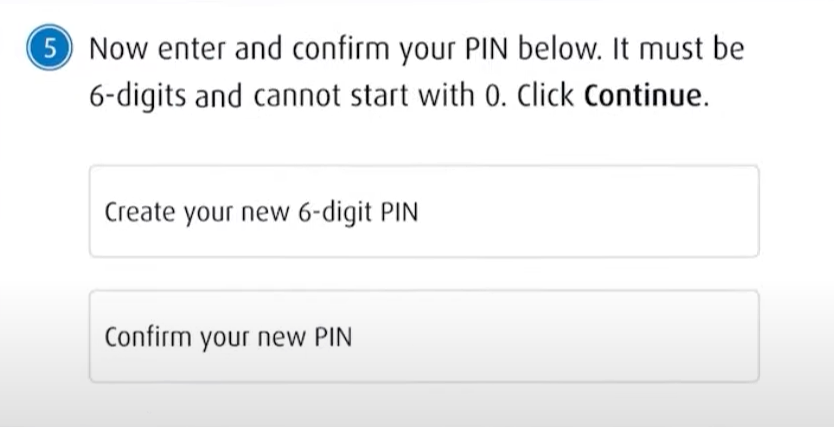
- Continuing in Online Banking for Business, create a new PIN (personal identification number). It must be 6-digits and cannot start with 0. Re-enter your PIN in the "Confirm your new PIN" field.
Note: You'll need this PIN every time you use RSA SecurID, so keep a record of it somewhere safe.
- When you’re finished, select Continue.
IMPORTANT: There may be a delay of several seconds before your PIN is confirmed. DO NOT press "Continue" again. This may cause an error.
You’ve now created your PIN. You’ll use this each time you’re asked to generate a passcode.
This is your final step. If you cancel the setup now, you’ll have to start over next time.
To complete your token setup, please generate a passcode. These will be the same steps you follow every time you're asked to enter an RSA SecurID passcode.
- Open your RSA SecurID software.
- Enter the PIN (6-digit personal identification number) you just created and select the arrow button to generate a one-time passcode.
Note: We recommend waiting until the passcode refreshes before proceeding to the next step.
- When the passcode refreshes, select the Copy button.
- Paste the 8-digit code into the passcode field in Online Banking for Business.
- And select Submit.
IMPORTANT: There may be a delay of several seconds before your PIN is confirmed. DO NOT press "Submit" again. This may cause an error.
- Continuing in Online Banking for Business, select Complete setup.
Note: If you get an error message, go to your RSA SecurID software and select the Re-enter PIN button.
Carefully, enter your PIN into the RSA SecurID software. As soon as the RSA SecurID software generates a new passcode, select the Copy button, and paste the new passcode into the passcode field in Online Banking for Business. Then select Complete setup.
Success! Your RSA SecurID token is now set up and ready to use to confirm your identity.
Top Questions
- a. How do I generate an RSA SecurID passcode?
- How do I install my RSA SecurID soft token?
- f. How do I get a BMO account holder's branch number?
- c. How do I unlock a user?
- b. How do I create an Alert?
- f. How do I install my RSA SecurID soft token on Windows?
- Need help signing in to Online Banking for Business?
- f. How do I remove an alert?
- b. What is 2-step verification (secondary authentication)?
- c. How do I create new Admins and Users?
Top
The screen size of your device is too small to view the page. Please use a larger device.